Understanding graphics settings is essential for gamers seeking the best visual experience while ensuring optimal performance. With various options available in most modern games, navigating these settings can be daunting, especially for those new to PC gaming. This article breaks down the key graphics settings you will encounter and explains their impact on gameplay, helping you to customize your gaming experience effectively.
Resolution: The Foundation of Visual Clarity
Resolution refers to the number of pixels displayed on your screen, typically denoted as width x height (for example, 1920×1080). A higher resolution means more pixels, resulting in sharper images and finer details. Common resolutions include 1920×1080 (Full HD), 2560×1440 (QHD), and 3840×2160 (4K). While higher resolutions provide stunning visuals, they also demand more from your graphics card, potentially leading to lower frame rates.
For most gamers, 1080p is a sweet spot, balancing quality and performance. However, if you have a powerful GPU and want to maximize your visual experience, consider 1440p or 4K resolutions. Just remember, increasing resolution can significantly impact performance, especially in graphically intensive games.
Frame Rate: The Smoothness Factor
Frame rate, measured in frames per second (FPS), is crucial for a smooth gaming experience. Higher frame rates mean smoother motion and improved responsiveness. Most gamers aim for at least 60 FPS, but competitive gamers may seek 144 FPS or higher to gain an edge in fast-paced games. Your hardware capabilities, particularly the GPU and CPU, play a significant role in achieving higher frame rates.
Many games offer options to cap the frame rate, which can help maintain consistency and reduce screen tearing. It is advisable to match the frame rate cap with your monitor’s refresh rate. For instance, if you have a 144Hz monitor, setting a cap at 144 FPS can enhance your gaming experience by ensuring smooth visuals.
Texture Quality: Enhancing Details
Texture quality determines how detailed the surfaces of objects appear in a game. Higher texture quality settings provide more detailed and realistic textures, making environments and characters look visually appealing. However, these settings require more video memory (VRAM), so players with less powerful graphics cards may experience performance drops if they set textures too high.
For most modern titles, medium to high texture quality settings strike a good balance between visual fidelity and performance. If you encounter frame rate issues, consider lowering the texture quality first, as it often has a more significant impact on performance than other settings.
Anti-Aliasing: Smoothing Out Edges
Anti-aliasing is a technique used to reduce the jagged edges that can appear in digital images, particularly around the borders of objects. Different methods exist, such as FXAA (Fast Approximate Anti-Aliasing) and MSAA (Multisample Anti-Aliasing), each with its performance trade-offs. While MSAA offers superior quality, it is more demanding on hardware.
For most gamers, FXAA provides a good balance of quality and performance, especially in fast-paced games where frame rates are crucial. Experimenting with various anti-aliasing settings can help you find the right compromise between visual quality and performance based on your system’s capabilities.
Shadow Quality: Realism vs. Performance
Shadow quality significantly affects the realism of a game’s graphics. Higher shadow quality settings create softer and more dynamic shadows, enhancing the immersive experience. However, these settings can be taxing on your GPU, especially when multiple light sources are involved.
If you are playing on mid-range hardware, consider setting shadow quality to medium or low. While this may reduce some realism, it can lead to noticeable performance gains, especially in open-world games where shadows play a significant role in the environment.
Draw Distance: Visual Fidelity in the Horizon
Draw distance refers to how far into the game world the engine renders objects. Increasing this setting allows you to see details at greater distances, which is particularly important in open-world games. A higher draw distance can create a more immersive experience but can also strain your GPU as it requires more processing power to render distant objects.
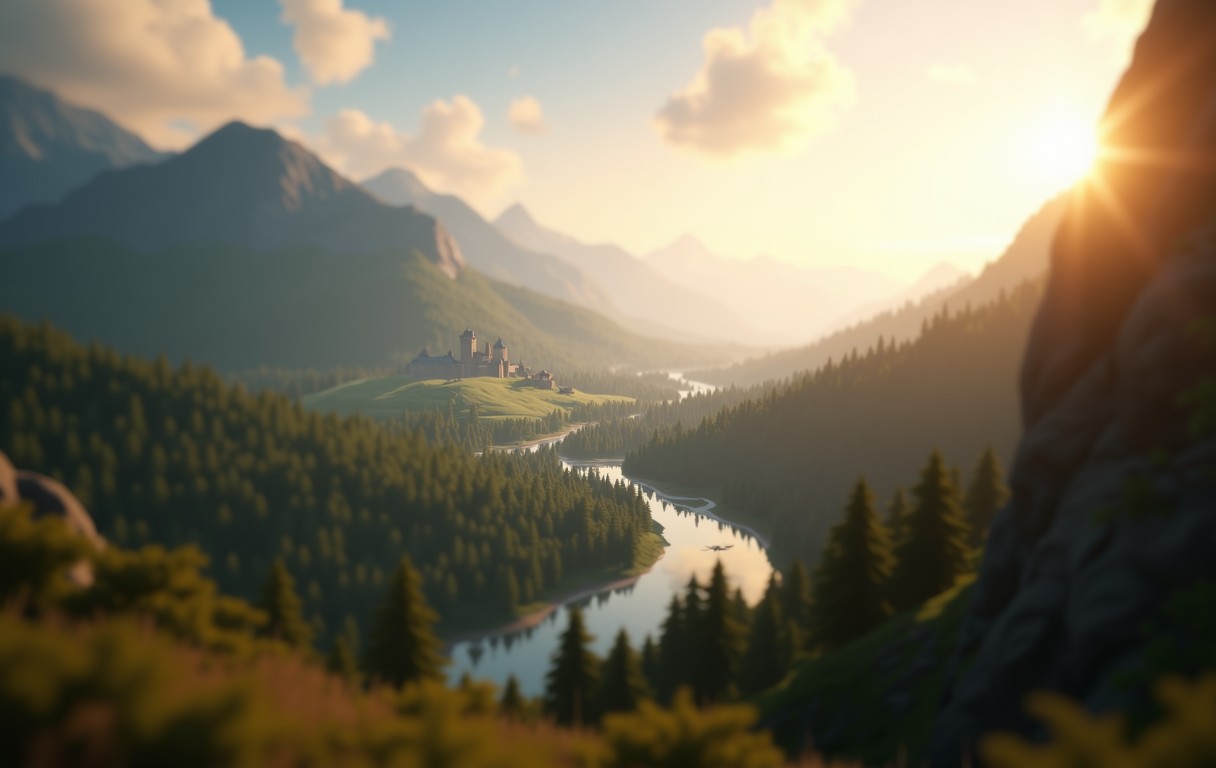
For most gamers, adjusting draw distance to a medium or high setting is advisable, depending on your hardware. A well-optimized game will allow you to see distant landscapes without sacrificing frame rates, creating a visually appealing experience without overwhelming your system.
V-Sync and G-Sync: Reducing Screen Tearing
Vertical Synchronization (V-Sync) is a setting that helps prevent screen tearing by synchronizing the frame rate of the game with the refresh rate of your monitor. While V-Sync can eliminate tearing, it may introduce input lag and reduce frame rates if your system cannot maintain the monitor’s refresh rate.
Alternatively, technologies like NVIDIA’s G-Sync or AMD’s FreeSync offer dynamic refresh rates that adapt to your frame rate, providing a smoother experience without the drawbacks of traditional V-Sync. If your monitor supports G-Sync or FreeSync, enabling these settings can significantly enhance your gaming experience by eliminating tearing while minimizing input lag.
Conclusion: Customizing for Your Experience
Understanding and adjusting graphics settings is key to optimizing your gaming experience. Each setting plays a role in how your game looks and performs, and finding the right balance can enhance both visual quality and gameplay smoothness. Experimenting with these settings based on your hardware capabilities and personal preferences will help you create a gaming experience that is both visually stunning and fluid.

I’ve been playing video games since I got my first console at age five, and I love sharing insights about the industry. Writing about game design, indie gems, and the latest releases keeps me excited about the future of gaming.